Support
How to get help with a Videolytical system, what to send with a request, how updates reach a site, and answers to common questions.
How to get help
Videolytical software is engineered and supported from our head office in Noida, India. Write or call, and say which site and which product your request is about.
Head office
277, C Block, Sector 63, Noida, Uttar Pradesh, India
If a partner delivered your system
Videolytical delivers with OEMs (camera and hardware makers), security solution providers and system integrators. If one of them delivered your system, they may be your first point of contact. You can also write to us directly.
What to include in a request
A complete first message saves a round of questions. These details identify the site, the camera and the moment.
- Site name or site ID
- Name the site the request is about. If your deployment has a site ID, quote it.
- Product and version
- Name the product, for example AI Video Analytics or VMS Enterprise, our video management software (VMS). Give the version you are running.
- Affected cameras
- List the camera names or channel numbers. Say whether the problem is on one camera, one group or the whole site.
- Date and time of the event
- Give the date and time as shown on the camera view or the alert, so the recording and the alert can be matched.
- Screenshots or a short clip
- A screenshot of the alert or the error, or a short clip of the scene, shows what the operator saw. Follow your organisation’s rules before you send footage.
- What changed recently
- Mention what changed before the problem began: a camera moved or replaced, new lighting, network work, a new rule or schedule, or an update.
Where to find these details
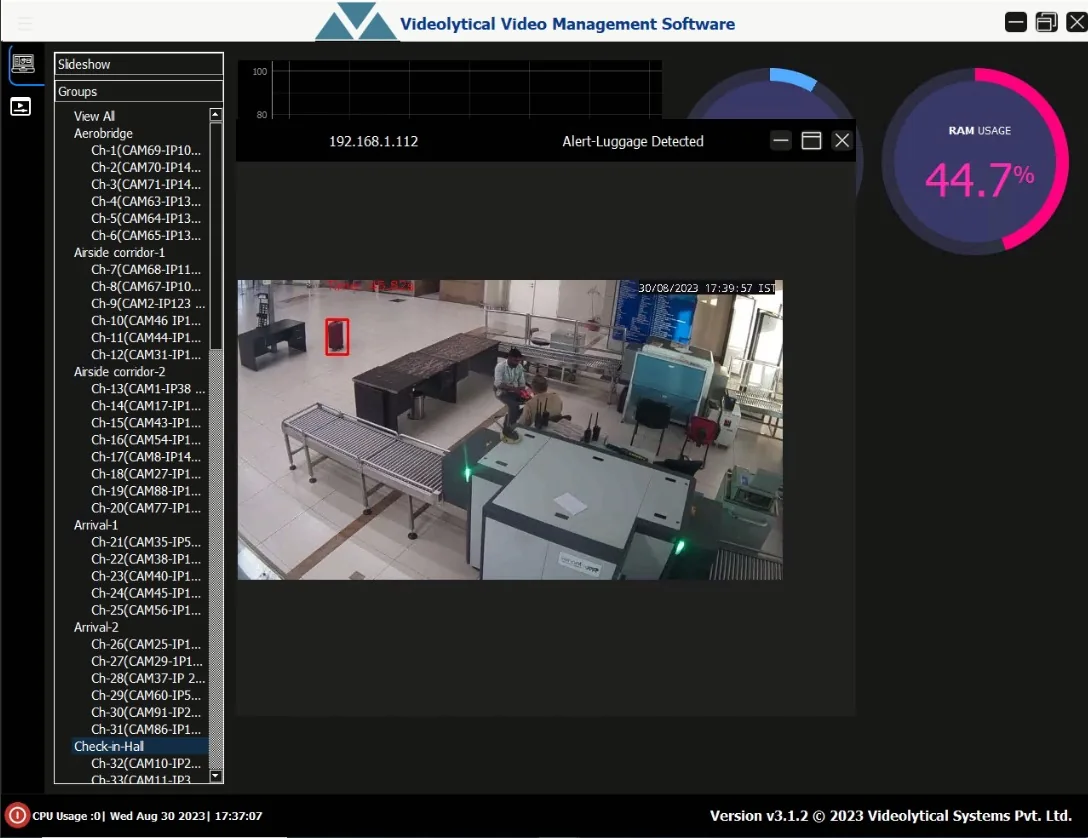
Groups, channels, alerts and version
This capture shows the VMS Enterprise console. The panel on the left lists cameras by group, each with a channel number. An alert is open in a pop-up window. Its title names the alert, and the camera frame carries the date and time. The status bar at the bottom of the window shows the software version.
Quote these as they appear on your screen. A screenshot of the whole window records them together.
From deployment to handover
A rollout on site follows the steps below. Training is part of handover, and optimisation continues afterwards. If a camera is moved or a scene changes, its zones and thresholds may need adjusting. Tell us or your delivery partner.
-
Survey and camera audit
Your existing cameras are reviewed: where they are, what they see and how good the image is.
-
Network and GPU sizing
Bandwidth and processing hardware are sized for your streams and the analytics you choose.
-
Pilot on a few cameras
The analytics run on a small set of cameras first, so results can be checked on your own scenes.
-
Scale-out with calibration
The remaining cameras are added. Zones, schedules and confidence thresholds are set and calibrated per camera.
-
Handover and training
Your team is trained and takes over daily operation of the system.
Software and model updates
An update changes the software or the analytics models. How it reaches a site depends on how the site is deployed.
| Signed updates | Model and software updates are signed. Signing is a way to confirm that a package comes from its publisher and has not been changed on the way. |
|---|---|
| Air-gapped sites | An air-gapped site has no outside connection. Updates arrive as signed packages and are installed offline. |
| Cloud deployments | Updates are handled centrally, along with dashboards and storage. |
| Planning an update | Agree a time that suits your control room. Note the version in use before and after, so a later change in behaviour can be traced. |
Frequently asked questions
Short answers on cameras, connectivity, storage, alerts, access, updates and how to start.
Do we need new cameras?
Usually not. The software takes video from existing IP cameras and network video recorders over ONVIF and RTSP. Analytics are added on edge devices or GPU servers that read your current streams. The site survey and camera audit checks whether camera positions and image quality suit the analytics you want.
Does it work without an internet connection?
Yes. Models run offline on edge devices or on-premise GPU servers. Cloud is an option for managing estates of many sites. Detection and alerting do not depend on it.
Where is our video stored?
That depends on the deployment option. In an edge or on-premise deployment, analysis runs where the cameras are. Footage stays on your premises and only structured events cross the network. The cloud option adds central storage, dashboards and updates for estates of many sites.
Can alerts appear in the VMS we already use?
Yes. Analytics can be bridged into the VMS or command-centre console you already use. Alerts can also be sent by SMS, by email or to a webhook, and a REST API passes events to dashboards and to security management systems (SIEM and PSIM).
Can the analytics detect objects specific to our site?
Yes. Models can be trained for site-specific objects. Tell us what you need to detect, and send a sample clip if you have one.
Which analytics are available?
Intrusion detection, crowd monitoring, object detection, vehicle analytics, face recognition, fire and smoke detection, PPE (personal protective equipment) compliance, heatmap and dwell time, helmet and traffic violations, people counting, loitering detection and video synopsis. See all analytics modules.
How are false alarms handled?
Each module has its own rules engine. Zones, schedules and confidence thresholds are set per camera, and scene calibration is used to suppress false alarms. Our guide to reducing false alarms explains the usual causes and controls.
How is access to cameras and functions controlled?
Access is role-based, with permissions set per camera and per function. Sign-on can use your AD or LDAP directory. Alerts and operator actions are written to an audit trail.
How are air-gapped sites updated?
Updates for an air-gapped site are signed packages that are installed offline. The software runs in full on an isolated network, so the site needs no outside connection to operate or to update.
Who installs and maintains the system?
Videolytical delivers with OEMs, security solution providers and system integrators. System integrators design, deploy and maintain large estates, and our engineers support the calibration. Delivery includes testing, and optimisation continues after handover.
How do we start?
Tell us about the site: what kind of site it is, the cameras you have and what you want to detect. From there we can hold an architecture and sizing discussion, or plan a pilot on a small set of cameras. Send an enquiry.
Can we see it working on our own footage?
Yes. We offer a live demo on your own footage. You can also send a sample clip, and we will show you what the models detect in it.
See the software on your own footage
Arrange a live demo, send a sample clip, or ask for an architecture and sizing discussion for your site.