What a control room should expect from its video management software
This guide sets out what video management software (VMS) should do well in a control room, and what to ask a supplier to show you.
A control room has two main jobs: to notice an event while there is still time to act, and to show afterwards what happened. The VMS shapes how quickly an operator finds the right picture, and whether the recording is there when it is needed.
Judge it from the operator's chair
Before comparing feature lists, watch an operator do routine work on the software. Look for these signs.
- Common tasks take few steps: open a camera, step back in the recording, mark the moment.
- The screen stays readable in a dim room.
- Each desk reopens on its own layout after a restart or a change of shift.
- Alarms stand out from routine status messages.
Live view and recording come first
Everything else assumes that the picture on screen is live and that the recording exists. On a working network neither is certain.
- Streams recover. A dropped stream should reconnect by itself, and the view should say so instead of showing a frozen picture.
- Gaps are visible. Missing recording should show on the timeline, before an investigation needs it.
- Recording follows your policy. Continuous, scheduled or on events, kept for as long as each camera needs.
- One clock. Cameras and servers should share a time source, so views and recordings line up.
Ask the supplier to unplug a camera during the demonstration, and watch what the operator sees.
- Every shift
- Views that follow the site, steady live view, recording without hidden gaps
- After an event
- Fast playback, search, bookmarks and evidence export
- On an alarm
- Video with the alert, a procedure to follow, a record of the response
- Behind the screens
- Health monitoring, roles, audit, integration and room to grow
Screens that follow the site
Operators usually think in places, not camera numbers. Views, walls and maps should be arranged the same way.
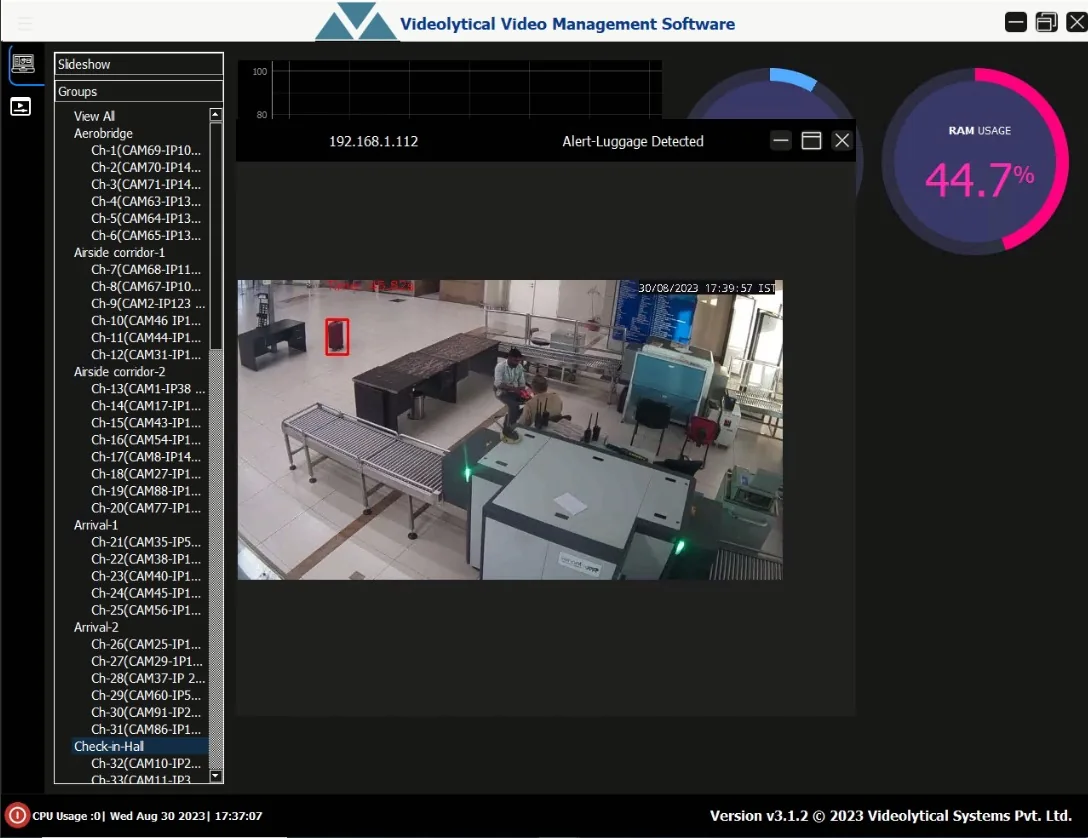
Views named the way the site is run
Group cameras by building, floor, gate or process, and name the groups in the operators' own words.
Saved layouts give each desk the grid it needs. A slideshow steps through cameras that need no permanent place on screen. Check that your own administrator can change these as the site changes.
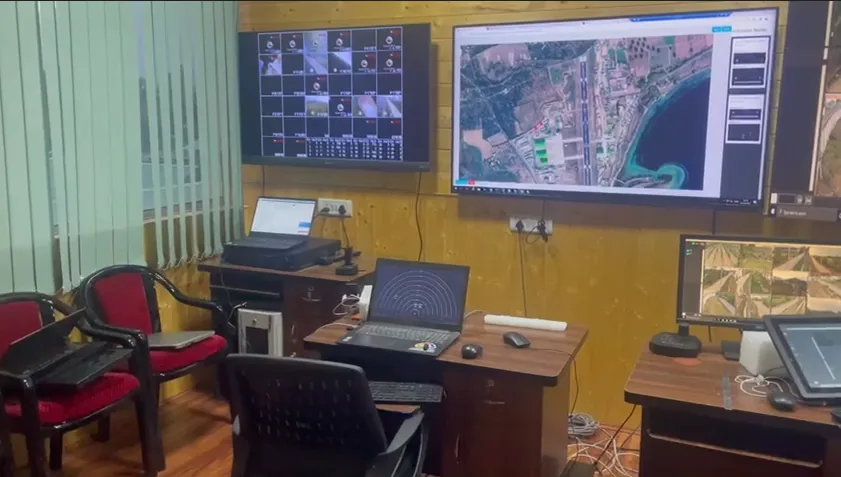
A control room with a camera wall beside a map display.
Walls and maps for the whole room
A video wall is shared by the room, so it should be driven from an operator's desk. Look for saved wall layouts and a quick way to send a camera, or the camera behind an alarm, to a chosen screen.
On a large site, a map is often the quicker index. Cameras and alarms appear at their positions, so an operator can pick the view nearest an incident without knowing its name.
Finding and keeping video after an event
Recordings are kept for the day someone needs one clip. That clip should be quick to find and fit to pass on as evidence.
- Playback
- Moving from live to recorded video on the same camera should take one action. Instant replay lets the operator check what was just seen. Several cameras should play back in step, so a person can be followed from one view to the next.
- Search
- Look for search by time, camera, event and alarm type. Where analytics are in use, searching on what was detected narrows the work further.
- Bookmarks
- A bookmark marks a moment on the recording with a short note, so the operator who saw something can hand it to the investigator who follows up. Check whether bookmarked video is protected from being overwritten.
- Evidence export
- An exported clip has to make sense outside the control room. It should carry the camera name and the time, play on an ordinary computer, and leave a record of who exported it and when. Ask whoever will receive the clips what they need.
When an alarm arrives
Analytics and other sensors raise alarms. The VMS should help an operator deal with each one quickly and leave a record. Look for this sequence.
-
The alert opens with video
The camera that raised the alarm appears with the time and what was detected. The operator does not have to look it up.
-
The operator verifies
A replay of the moments before the alarm, beside the live picture, helps the operator judge whether it is real.
-
A procedure guides the response
The software prompts the site's standard operating procedure (SOP) for that alarm type: what to check, who to call, when to escalate.
-
The alarm is closed with a reason
The reason might be real, false or test. Over time the reasons show which cameras and rules need tuning.
-
The record stays together
The alarm, its video and the operator's actions remain linked for review or handover.
The system behind the screens
These parts are easily left out of a demonstration. They affect whether the room can rely on the system and account for its actions later.
| Area | What to expect | Questions for the supplier |
|---|---|---|
| Health monitoring | The software reports its own faults: cameras that stop sending, streams that keep dropping, recording that has stopped, servers short of storage, memory or processing power. | Where is a fault shown, and who is told? How would we find a camera that stopped recording overnight? |
| Roles and access | Personal accounts, not shared ones. Each person sees and controls only the cameras and functions the job needs. | How is a new operator given one building only? How is access removed when someone leaves? |
| Audit trail | A record of who viewed, exported, changed or acknowledged what, and when. It helps the organisation answer a complaint or an inquiry. | Can we see one operator's actions for a shift? Who is able to alter or delete that record? |
| Other systems | Support for common camera standards such as ONVIF and RTSP, so existing cameras and recorders can usually stay. A documented way to exchange events with access control, alarm panels or a command-centre console. | Can we see the interface documents and a working example? |
| More sites | New cameras and sites join without changing how operators work. Each site keeps recording if its link to the centre fails. | How would a second site appear to our operators? What does each site need locally? |
How Videolytical approaches this
VMS Enterprise arranges cameras into groups and logical views, with layouts and slideshow walls, and works with existing IP cameras and network video recorders over ONVIF and RTSP. It provides live view, event recording and playback, with event bookmarks, instant replay and smart search. Analytics alerts appear in the console, and health telemetry shows CPU, RAM and stream status for each node.
Command and Control adds multi-monitor video walls with drag-and-drop layouts, a GIS (geographic information system) or satellite map overlay of cameras and alerts, escalation workflows, SOP prompts and audit trails.
See the console on your own footage
Arrange a live demo of VMS Enterprise, or ask for an architecture and sizing discussion for your control room.